Getting OpenVPN to work in KDE 6 is easy — but one thing that really annoyed me was figuring out how to set up split tunneling.
In short: I wanted my internet traffic to go through my local connection (keeping my own IP address) while still being able to access the remote network through the VPN.
The solution was found here.
Here’s how you do it:
- Go to System Settings → Connections.
- Select the VPN connection you have set up.
- In the pane on the right, select the IPv4 tab.
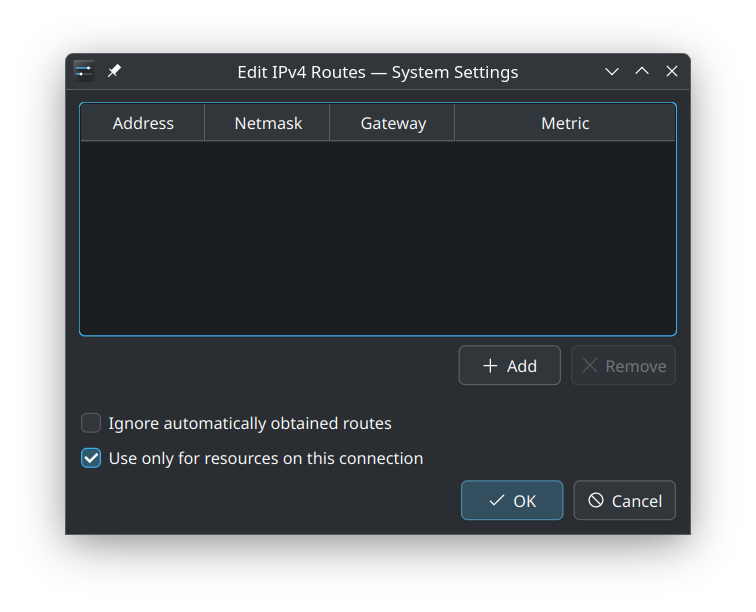
- Click the Routes button at the bottom.
- Check the box “Use only for resources on this connection.”
Done! Now you have a working split tunnel setup.
What is Split Tunneling?
Split tunneling is a network setup where only some of your traffic goes through a VPN, while the rest uses your normal internet connection.
Instead of sending everything through the VPN, you split the traffic based on destination.
How it works:
- When you connect to a VPN normally, all your traffic — websites, apps, everything — is routed through the VPN.
(You “become” part of the remote network, and your public IP changes.) - With split tunneling, the VPN client is set up to only route specific traffic (for example, access to a company’s internal servers) through the VPN.
- All other traffic (like browsing Google, YouTube, etc.) stays on your local network and uses your own public IP address.
Why use Split Tunneling?
- Speed: Local traffic doesn’t get slowed down by the VPN.
- Privacy: You can browse normally, while still accessing private resources securely.
- Access: Some websites or services (like streaming platforms) might block VPN IPs — split tunneling avoids this by keeping your real IP.
Technical Detail: Behind the scenes, split tunneling works by changing your routing table.
When you enable “Use only for resources on this connection” in KDE’s VPN settings, KDE/NetworkManager tells the system:
“Only send traffic destined for the remote VPN network over the VPN. Everything else, send normally.”
This is managed by setting up specific routes based on the IP ranges associated with the remote network.